- Simplifying AI
- Pages
- How to Build AI Agents From YouTube Tutorials
How to Build AI Agents From YouTube Tutorials
No manual node building. No guesswork. Just copy-paste.
This guide shows you how to turn any n8n YouTube tutorial into a fully working AI agent using Google AI Studio and Claude, without rebuilding anything from scratch.
What You'll Need
Tool | Purpose | Link |
|---|---|---|
Google AI Studio | Extract workflow steps from video | |
Claude Pro | Convert steps to n8n JSON | |
n8n | Run your automation |
Step 1: Extract the Workflow from YouTube
Tool: Google AI Studio (Gemini)

Google AI Studio can process YouTube videos directly, no transcripts needed.
How to do it:
Go to aistudio.google.com
Start a new chat with Gemini 3 Pro (or latest model with video understanding)
Paste your YouTube tutorial link
Use this prompt:
Analyze this n8n tutorial video and break down the complete workflow:

1. List every node used (in order)
2. For each node, specify:
   - Node type (HTTP Request, AI Agent, Code, etc.)
   - Configuration settings shown
   - Connections to other nodes
3. Include any API endpoints, credentials, or parameters mentioned
4. Note the trigger type (Manual, Webhook, Schedule, etc.)

Be extremely detailed—I need to recreate this workflow exactly.
Example Output You'll Get:
WORKFLOW BREAKDOWN: AI Email Responder Agent

TRIGGER: Manual Trigger
↓
NODE 1: Gmail Trigger
- Type: Gmail Trigger
- Settings: Poll every 5 minutes, Label: "Inbox"
↓
NODE 2: AI Agent
- Type: AI Agent (Tools Agent)
- Model: GPT-4
- System Prompt: "You are an email assistant..."
- Tools connected: Gmail Send
↓
NODE 3: Gmail Send
- Type: Gmail
- Operation: Send Email
...
Step 2: Convert to n8n JSON with Claude
Tool: Claude (with a Custom Project)

Now you'll turn that breakdown into importable JSON.
Setting Up Your Claude Project (One-Time Setup):
Go to claude.ai → Projects → Create Project
Name it:
n8n Workflow GeneratorAdd these Project Instructions:
You are an n8n workflow expert. When given a workflow breakdown, you convert it into valid n8n JSON format that can be directly imported.

RULES:
- Output ONLY valid JSON (no markdown, no explanation)
- Use correct n8n node type names (e.g., "n8n-nodes-base.gmail", "n8n-nodes-langchain.agent")
- Include proper node positions for clean visual layout
- Set up all connections between nodes
- Include placeholder values for credentials (user will configure)
- Use the latest n8n node versions

STRUCTURE:
{
  "name": "Workflow Name",
  "nodes": [...],
  "connections": {...},
  "settings": {...}
}
How to Generate the JSON:
Open your Claude Project
Paste the workflow breakdown from Step 1
Add this prompt:
Convert this workflow breakdown into n8n-importable JSON:

[PASTE GEMINI OUTPUT HERE]

Output only the JSON, nothing else.
Step 3: Import Into n8n
Tool: n8n (Cloud or Self-Hosted)
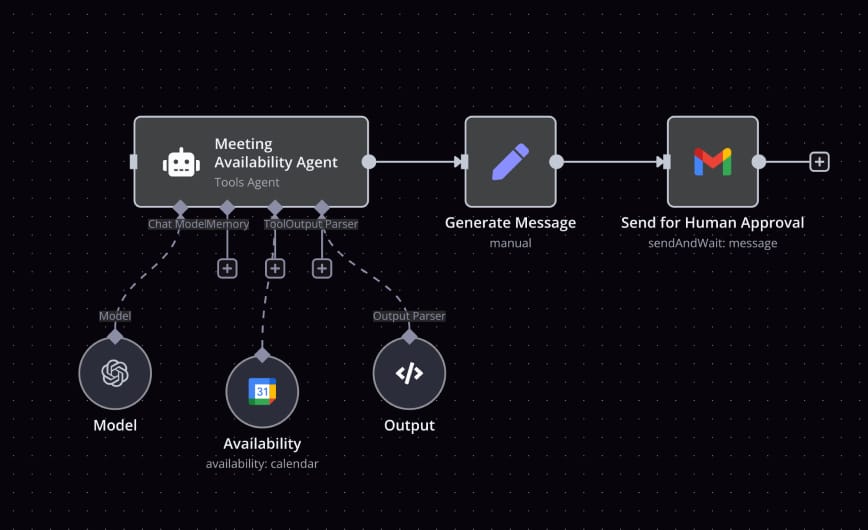
Import Steps:
Open n8n → Create New Workflow
Click the three dots (⋮) in the top-right corner
Select Import from JSON
Paste your JSON from Step 2
Click Import
Your entire workflow appears instantly—all nodes connected.
Quick Fixes After Import:
Issue | Solution |
|---|---|
Red credential warnings | Click the node → Add your credentials |
Missing API keys | Configure in Settings → Credentials |
Node version mismatch | Right-click node → Update to latest version |
Step 4: Configure & Test
Credential Setup:
For each service in your workflow, add credentials:
Click a node with a warning
Select Create New Credential
Follow the OAuth flow or paste API keys
Common credentials you'll need:
Gmail/Google: OAuth2 (requires Google Cloud Console setup)
OpenAI: API Key from platform.openai.com
Anthropic: API Key from console.anthropic.com
Slack: OAuth2 or Bot Token
Test Your Workflow:
Click Test Workflow (play button)
Check each node's output (click to expand)
Fix any errors (usually missing fields or credentials)
Once working → Activate the workflow
Pro Tips
Improve Gemini's Video Analysis
If Gemini misses details, try:
Go through the video again at these timestamps and extract:
- [0:00-2:00] What trigger is used?
- [2:00-5:00] What are the exact AI Agent settings?
- [5:00-8:00] What tools/sub-nodes are connected?

Be specific about every dropdown selection and text field shown.
Make Claude's JSON More Reliable
Add to your project instructions:
Before outputting JSON:
1. Validate all node type names exist in n8n
2. Ensure all connections reference existing node names
3. Check that typeVersion matches current n8n versions
Handle Complex Multi-Branch Workflows
For workflows with IF nodes, loops, or multiple branches:
For this workflow, also include:
- All conditional branches (IF true/false paths)
- Loop configurations (batch size, iterations)
- Error handling nodes
- All sub-workflows or nested agents
Summary
Step | Tool | Time |
|---|---|---|
1. Extract workflow | Google AI Studio | 2 min |
2. Generate JSON | Claude Project | 1 min |
3. Import to n8n | n8n | 30 sec |
4. Configure & test | n8n | 5 min |
Total: ~10 minutes from YouTube video to working agent.
Resources
n8n Documentation: docs.n8n.io
n8n Node Reference: docs.n8n.io/integrations
Google AI Studio: aistudio.google.com
Claude Projects: claude.ai
n8n Community Workflows: n8n.io/workflows
Now go turn any tutorial into a working agent, without rebuilding a single node.
Make sure to subscribe for more tutorials like this.